Write a detection
Create a detection that creates one signal for each event that matches your query. Test the query, then commit the detection for deployment. After deployment completes, the detection has the status "Deployed" and a managed table for its results.
Before you start
You need:
- access to create content in the Space
- an
eventsdataset with events that contain the fields and condition used by your detection
1. Open the detection editor
Select "Content" in the left navigation. Select "New", then select "Detection".
The app opens a new detection editor.
2. Configure the detection
Enter a descriptive name in "Detection name".
Enter a query in "Query" that selects the required signal fields from each matching event. Replace the placeholders in this pattern with the event dataset, condition, label, and stable event identifier:
FROM <event-dataset>
| WHERE <condition>
| SELECT timestamp, message,
  labels = map('<label-key>': '<label-value>'),
  event.id = <event-id-field>
Preserve a stable source event identifier in event.id. Set the metadata fields
that match your detection policy. Leave "Deploy" off while you test the query.
The app shows "Changes saved", the "Uncommitted" state, and the "Commit" button.
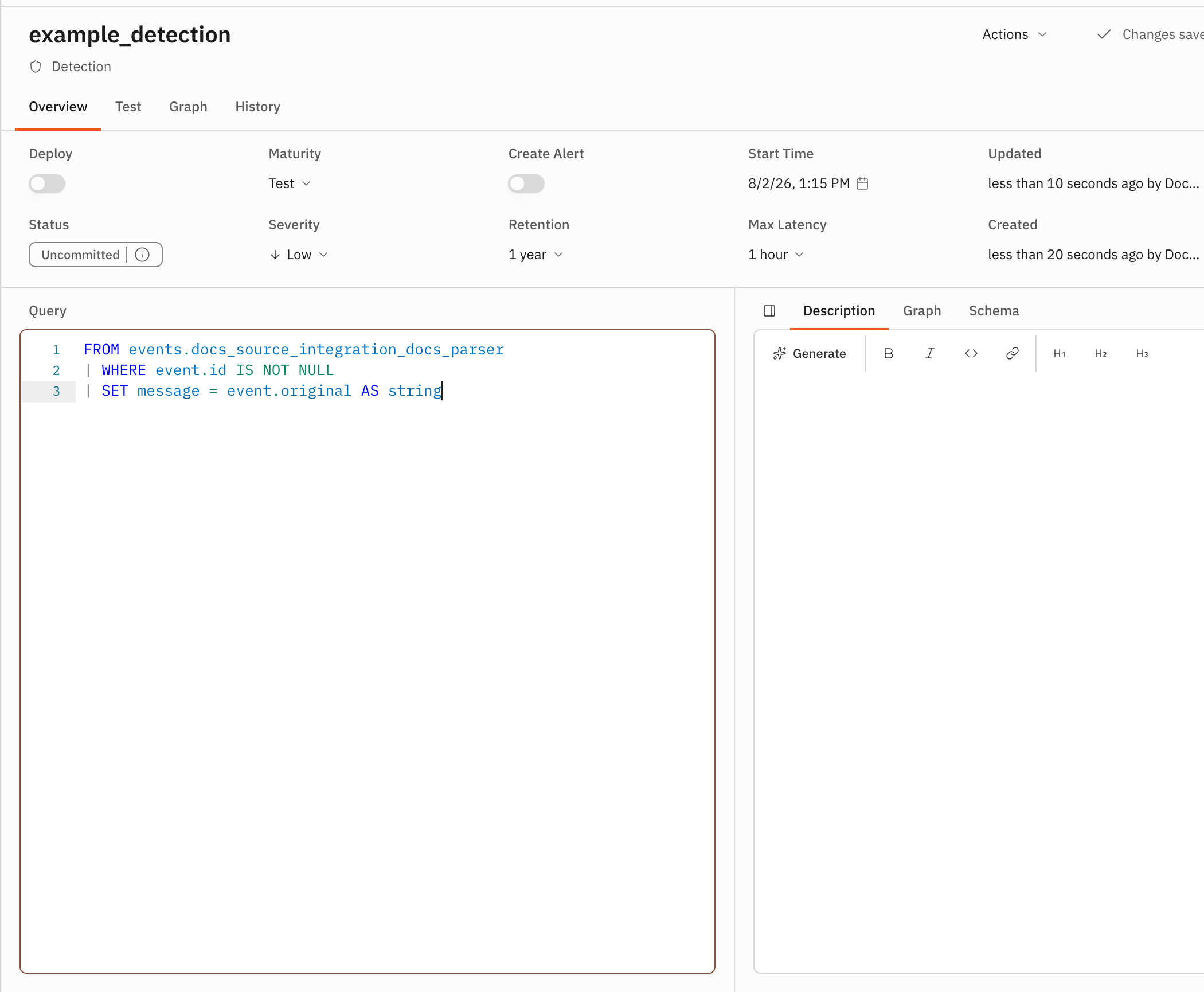
3. Test the detection
Select the "Test" tab. Set "Time Range" to a range that contains the events
you want to match, then select "Run". For example, use -1d for a one-day
window.
The result area shows the query status and the fields available to the detection. When events match, the table lists one row for each match. When no events match, it shows "0 Rows" and "No results". Check the dataset, condition, and time range before changing the signal fields. The run button changes to "Re-run" after the test completes.
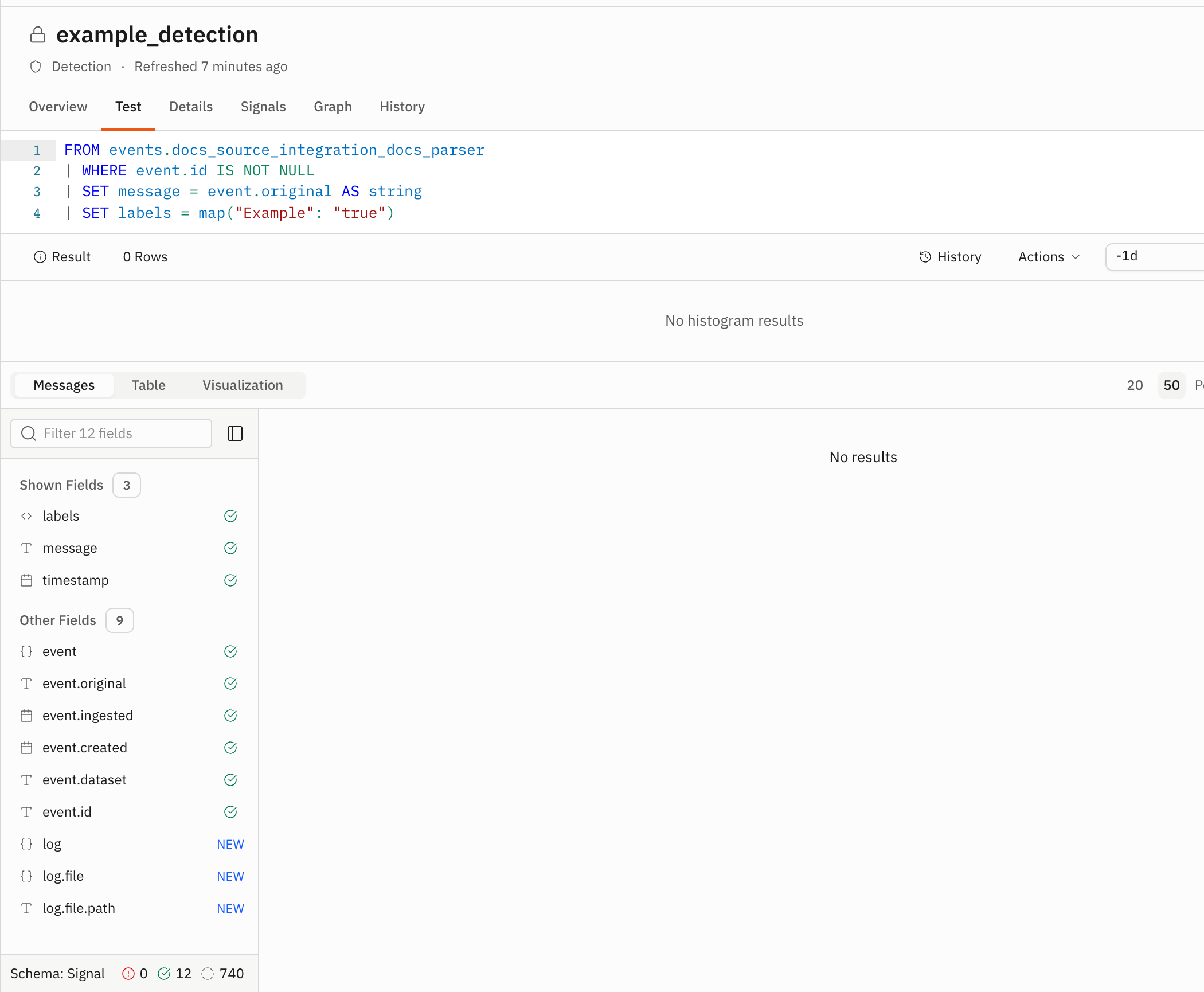
4. Commit the detection
Return to the detection editor and turn on "Deploy". Wait for the app to show "Changes saved".
Select "Commit". The app opens the "Commit Changeset" dialog for the
changeset. Review the detection,
its managed table, and the
signals union. Select
"Commit".
The app shows "Changes committed successfully". The detection status changes to a pending state while deployment starts. Wait for the status to change to "Deployed".
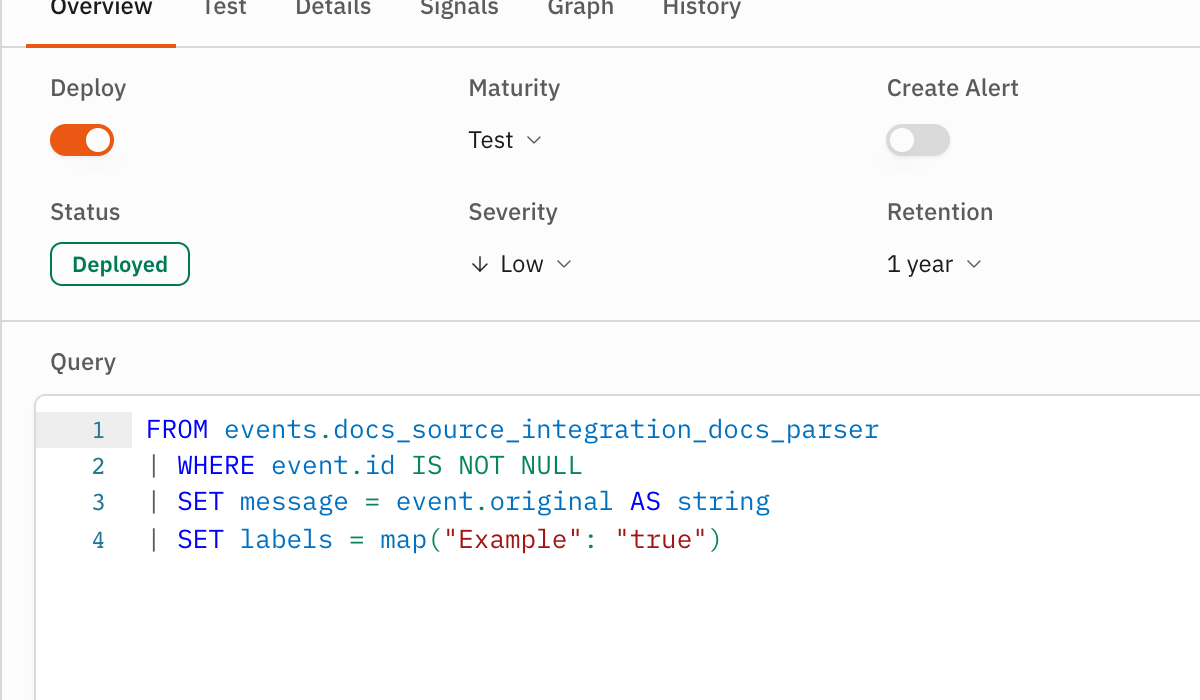
Verify the result
Return to "Content", open the detection you created, and confirm that "Status" shows "Deployed".
In "Query", run the following in the same Space:
FROM signals.<detection-name>
The result contains signals produced by the detection when matching events are available.