Explore data with a query
Run a Hamelin query against a dataset in a data space you can access. A completed run shows a result table and changes the run button to "Re-run".
Before you start
You need:
- a data space with a dataset that contains the events you want to inspect
- permission to run queries
1. Open the Query workbench
Select "Query" in the sidebar. Choose a data space that contains the dataset
you want to inspect. In the all-Spaces route, the Space selector appears above
the editor. When you open Query from a specific Space, the selector is not
shown. Set "Time Range" to a range that contains the events you want to inspect.
For example, use -7d for a seven-day window.
Replace the editor contents with a query for your dataset. Start with this pattern and replace the placeholder with the dataset name:
FROM <dataset-name>
FROM <dataset-name> reads the selected dataset. Use the dataset name that
contains the events you want to inspect.
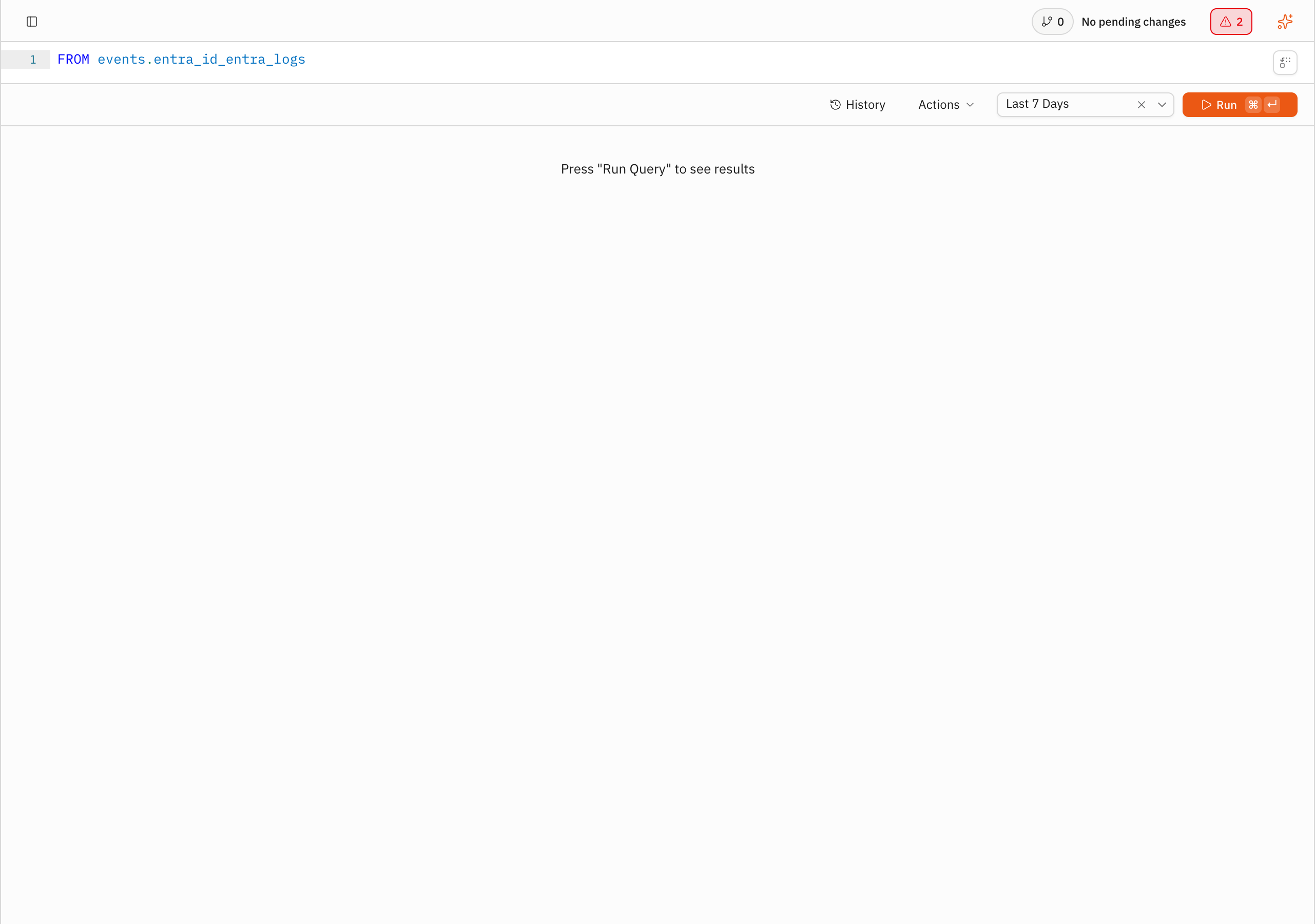
2. Run the query
Select "Run". The result area shows the completed query. The button changes to "Re-run".
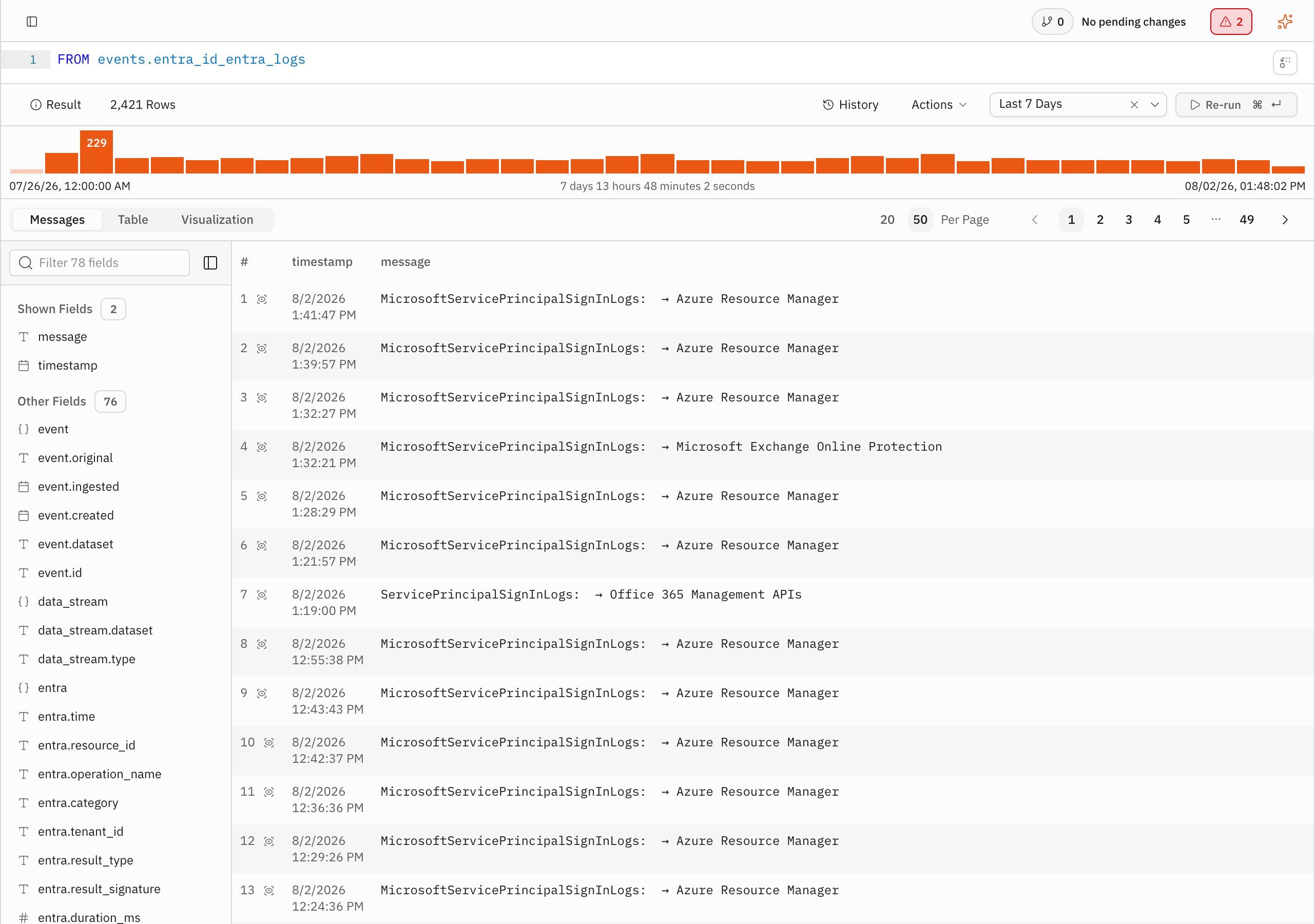
3. Inspect the results
Select the "Table" tab to inspect individual rows. The field sidebar separates columns in the table under "Shown Fields" from available columns under "Other Fields". The "Messages" and "Visualization" tabs provide other views of the same query result.
If the table is empty, check that the dataset name is correct and widen the time range. A query can complete successfully without returning rows.
Related
- Hamelin: one language for everything, how the same language supports queries and other Perpetual resources.
- Hamelin language reference, syntax and command details.