Visualize query results
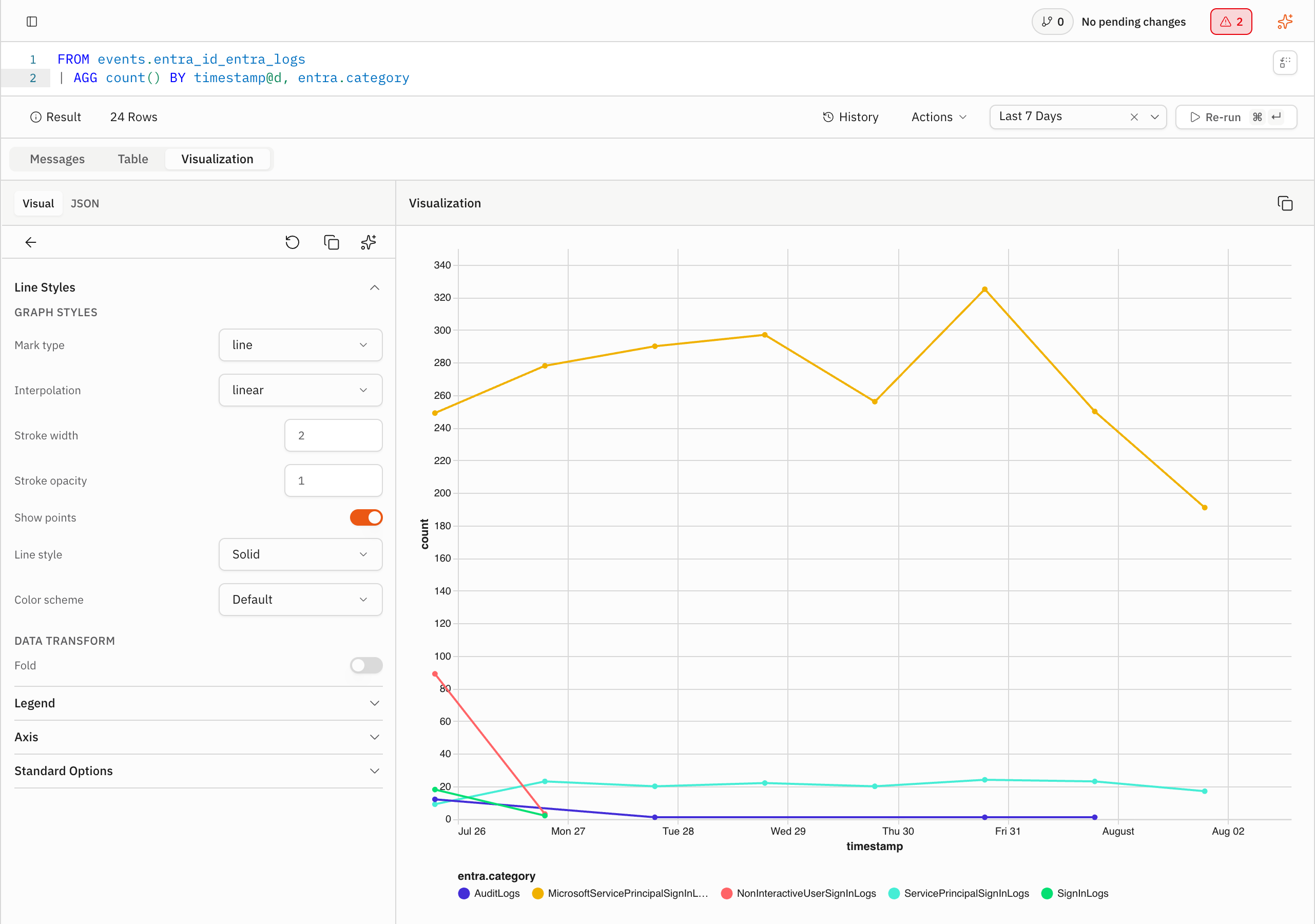
Turn a Hamelin query result into a line chart. Group records by time and a category field, then add the chart to an existing dashboard. The saved panel shows the selected time range, the time field on the horizontal axis, the count on the vertical axis, and one line for each category.
Before you start
You need:
- a data space with a dataset that contains the events you want to visualize
- an existing dashboard that you can update
- permission to run queries
1. Run the query
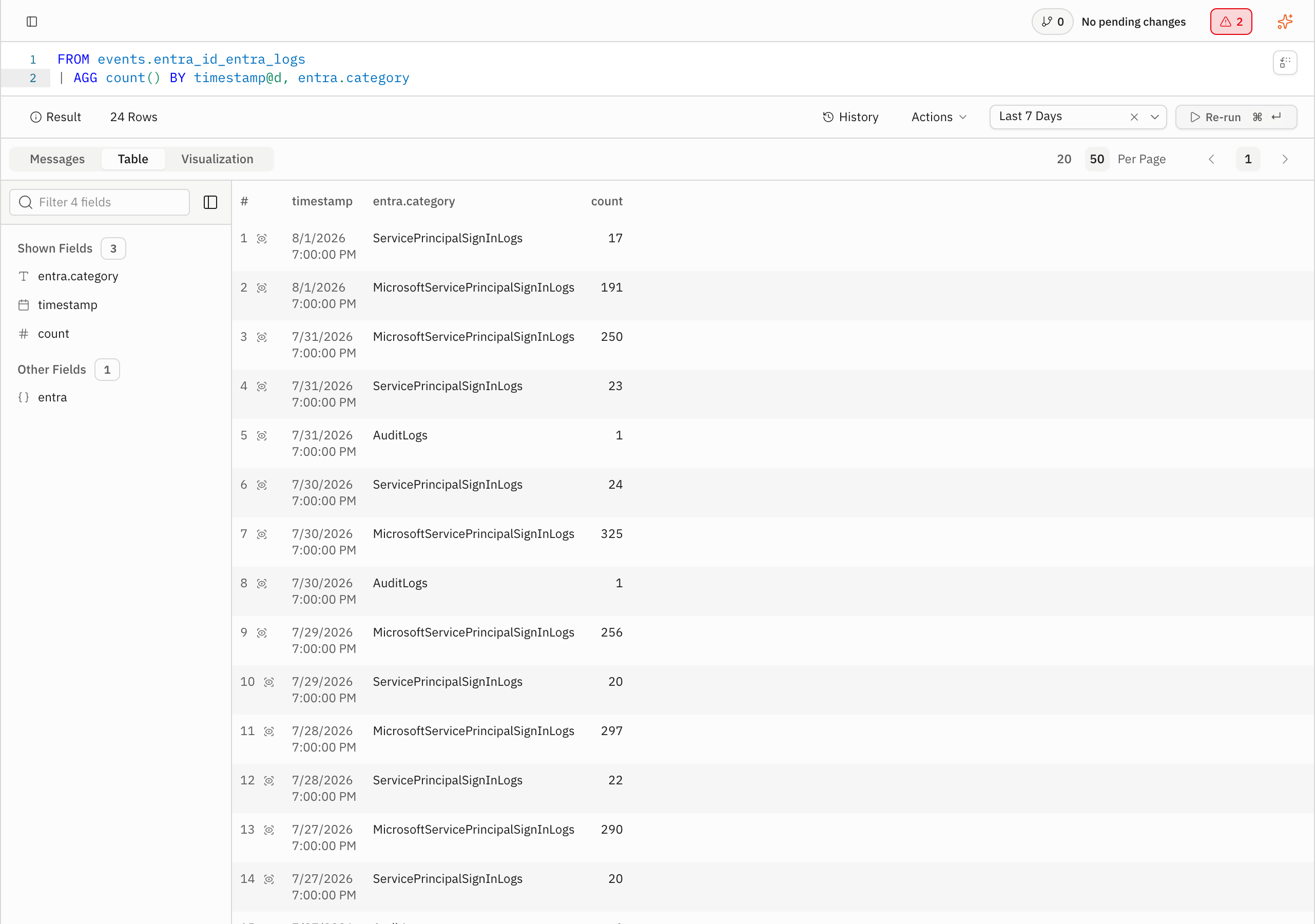
Select "Query" in the sidebar. Choose a data space with the dataset you want to visualize. Enter an aggregation query for that dataset. Use this pattern and replace the placeholders with fields from the dataset:
FROM <dataset-name>
| AGG count() BY timestamp, <group-field>
The query groups daily counts by a time bucket and grouping field. Set "Time
Range" to a range that contains the events you want to visualize. For example,
use -7d for a seven-day range. Select "Run". The "Table" tab shows the time,
grouping, and count fields.
A line chart needs one temporal field, one numeric field, and an optional grouping field. If the query returns unrelated fields, remove them from the output or choose a template that supports the returned shape.
2. Choose the line chart
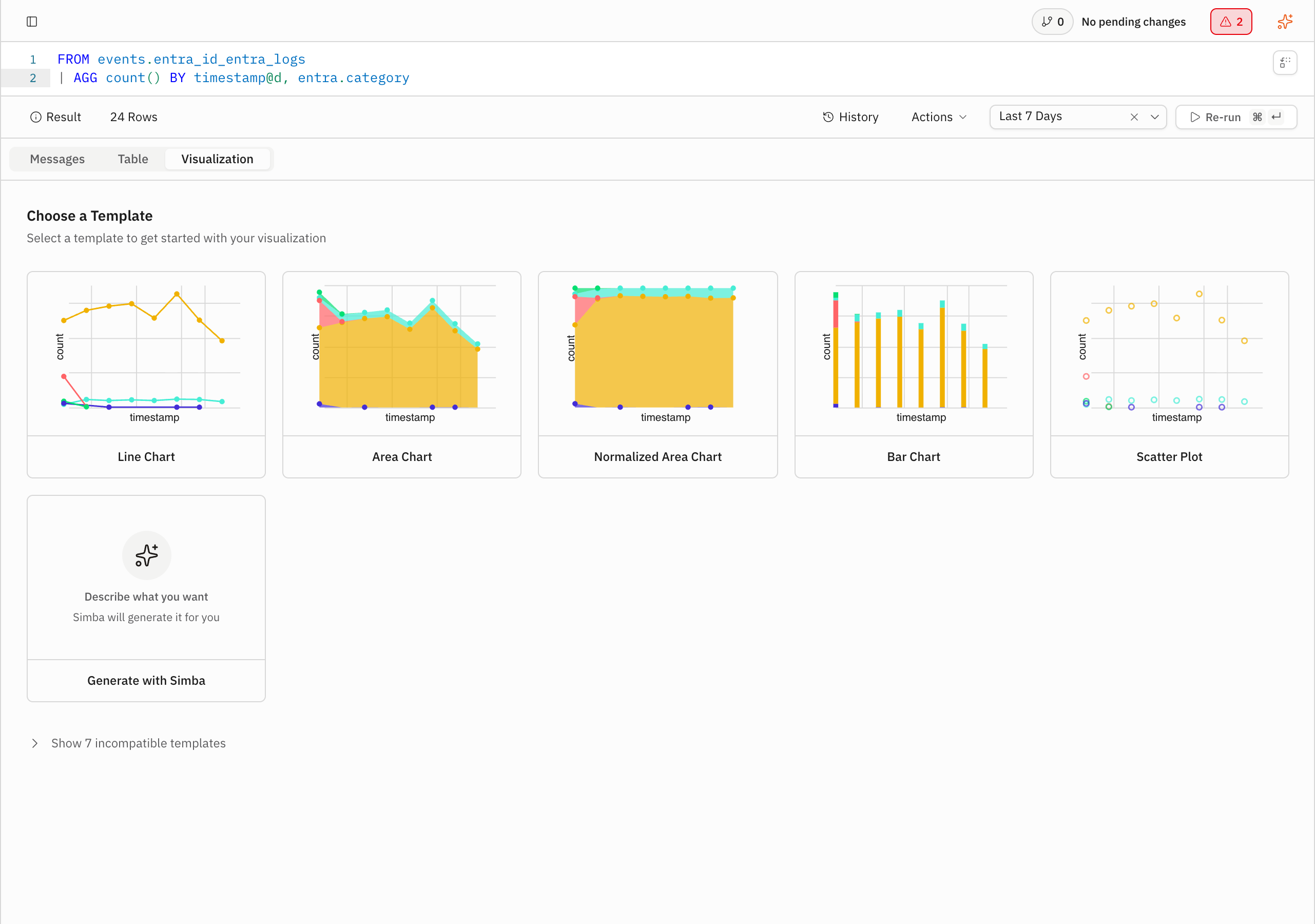
Select the "Visualization" tab. Under "Choose a Template", choose "Line Chart". The visualization editor opens with the generated chart specification and a chart preview.
3. Add the chart to a dashboard
Select "Actions", then select "Add to dashboard...". In the "Add to Dashboard" dialog, choose an existing dashboard under "Dashboard". Enter a title that identifies the panel in "Panel Title (optional)". Select "Add Panel".
The app confirms that it added the panel. Select the "View dashboard" link to open the saved panel.
Related
- Explore data with a query, how to run a query before you visualize it.
- Dashboards, the fields and panel types that a dashboard stores.