Connect a built-in data source
Connect a supported source with a built-in
connector. You
choose the connector kind, provide the source values and
credential, then save and commit
the connector. The page shows "Deployed" after deployment completes,
and queries can read the connected data at connectors.<connector-name>.
Before you start
You need:
- permission in the Space to create connectors and credentials
- access to the source you want to connect
Use the relevant Connector Setup page for vendor-side permissions when one is available.
1. Open the built-in connector catalog
In the left navigation, select "Datasets". Select "New Dataset", then select "Connector".
The "Create Connector" form opens.
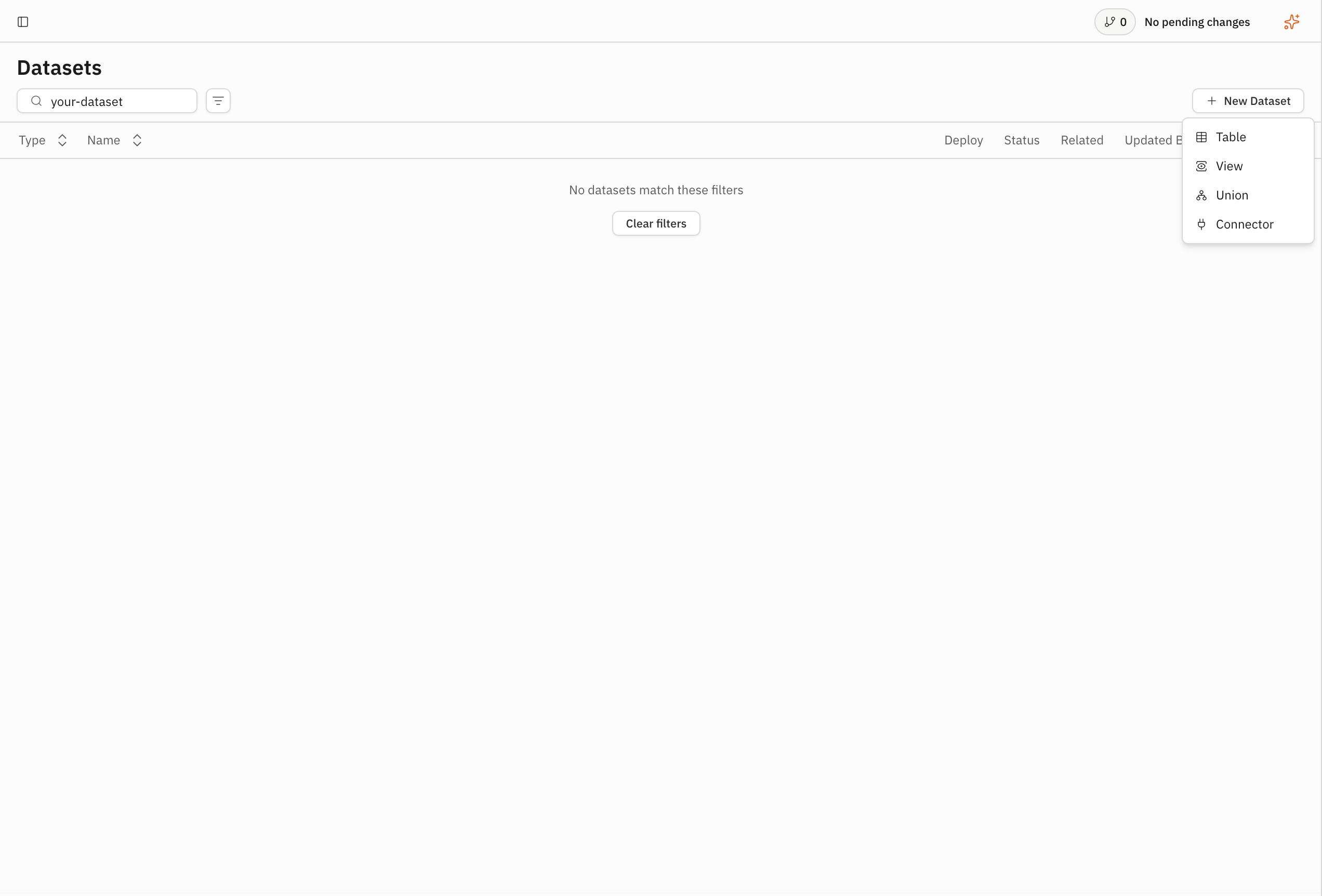
The connector form is ready for you to choose a connector kind.
2. Choose a built-in connector
Select "Connector kind". Search for, or select, the built-in connector that matches your source.
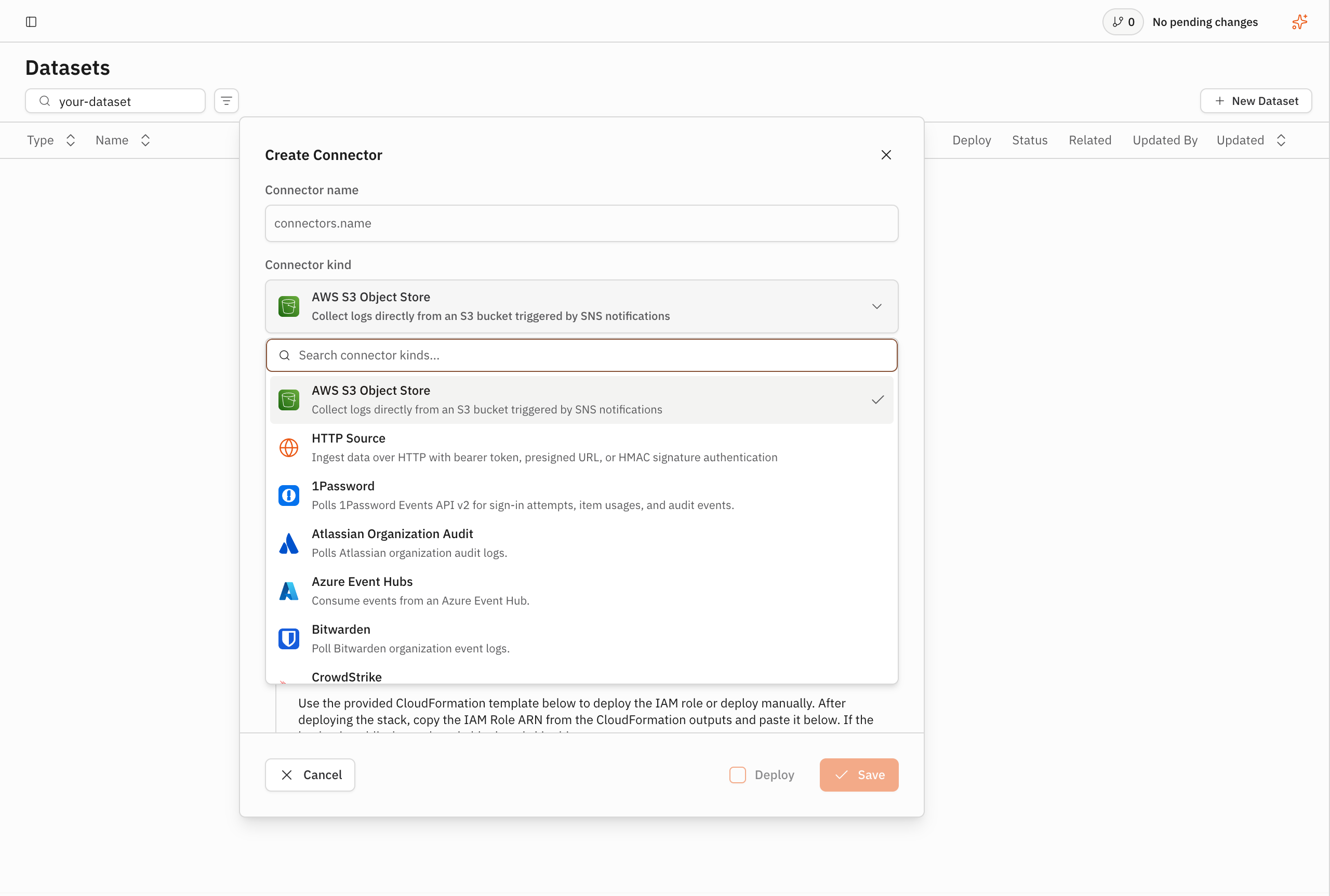
The form changes to show the fields for the selected connector.
3. Configure the connector
For connector-specific instructions, continue with the guide for the kind you selected:
- Collect data from S3 for "AWS S3 Object Store".
- Ingest data over HTTP push for "HTTP Source".
- Connector Setup for polling and streaming connectors.
Those guides cover the source-specific fields and verification steps. For other built-in connectors, continue with the fields shown in the form below.
Enter a reader-chosen name in "Connector name". The name identifies the
connector in the user interface. The query path uses the same name after the
connectors. prefix. After committing the connector, you will be able to
query the connector as connectors.<connector-name>.
Complete the fields shown for the selected connector. Select the stored credential required by the connector. If the credential does not exist, select "Create a credential" and create it before continuing.
Set "Initial Lookback (Days)" to the number of days of historical data that the connector retrieves during its initial deployment.
Keep "Deploy" selected. This field saves the connector as a resource enabled for deployment. Saving the connector applies that state.
The "Save" button becomes available when the required values are valid.
4. Save and commit the connector
Select "Save". The connector page opens with the change staged in the current changeset.
Select "Commit". In the "Commit Changeset" dialog, review the connector change, then select "Commit".
The commit records the connector change. The connector begins its asynchronous deployment process.
Verify the result
The connector page remains open after you commit. Confirm that "Deploy" is selected and wait for the status to change to "Deployed".
If the connector page exposes a "Runs" tab, use the tab according to the connector type:
- Polling connectors show runs with their status and imported-row counts.
- Streaming connectors show the message and heartbeat fields that the product provides for the stream.
The Runs tab is not available for every connector type, and a run is not guaranteed to start immediately after commit.
To query the connector data, select "Query" in the same Space and enter:
FROM connectors.<connector-name>
Replace <connector-name> with the name that you entered in "Connector name",
then select "Run". The result shows rows from the connected source when data is
available.