Route signals to Slack, Jira, or PagerDuty
Create a webhook that sends a
CaseCreated event for a new case to an
external system. Preview the rendered request, commit the webhook, and inspect
delivery records when a case event reaches the endpoint.
Before you start
You need:
- permission to manage credentials and webhooks
- a public HTTPS destination that can receive a POST request
- the URL, authentication header, and payload fields that the destination requires
Slack, Jira, and PagerDuty define their own endpoints and payload formats. Follow the destination's documentation to create its endpoint and choose its required payload fields.
1. Store the destination credential
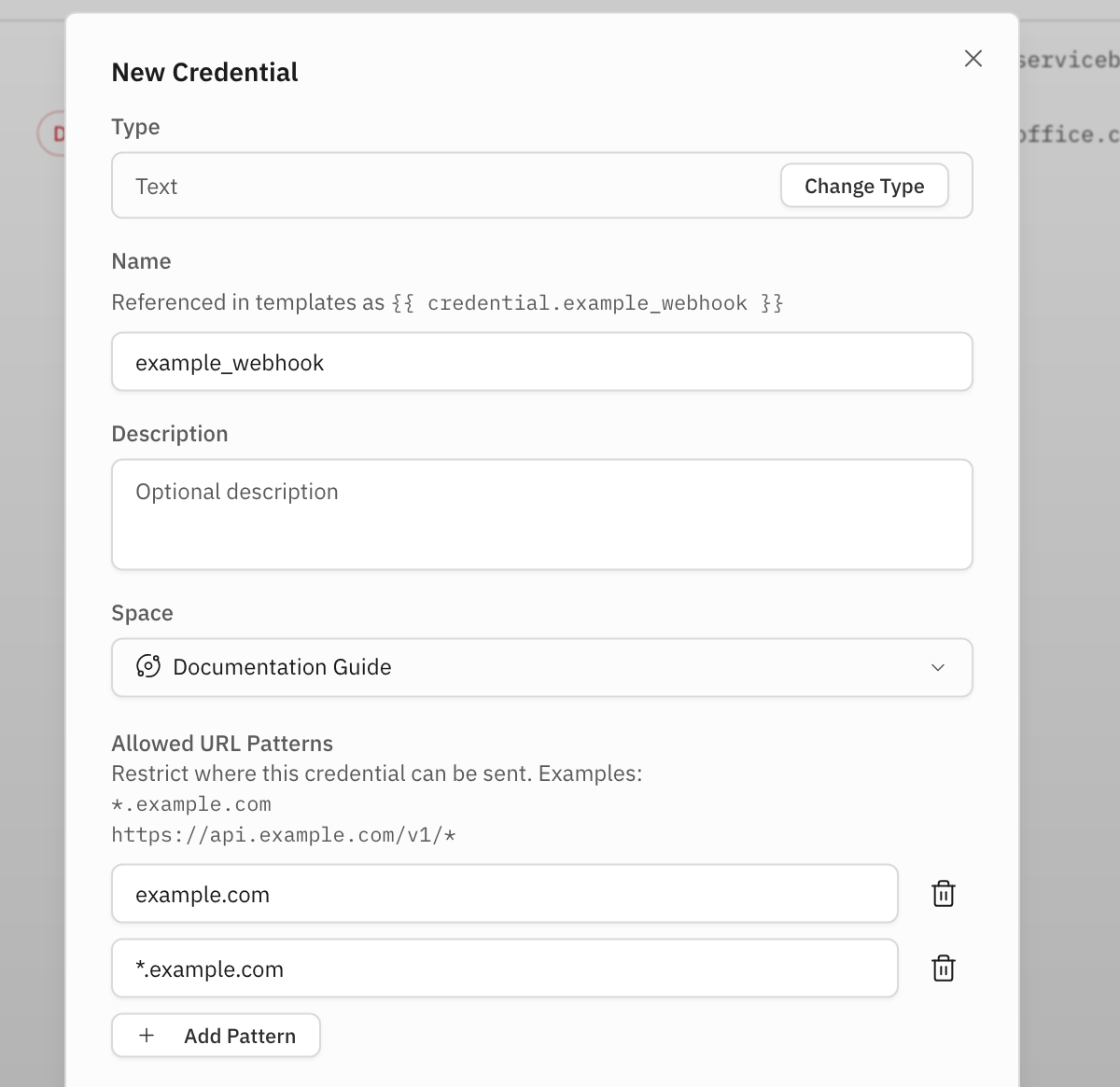
Select "Settings", select "Credentials", then select "New Credential". Choose "Text".
Enter these values:
| Field | Value |
|---|---|
| "Name" | A name that identifies the destination credential |
| "Description" | A description of the credential's purpose |
| "Space" | The Space where you will create the webhook |
| "Allowed URL Patterns" | A pattern that permits the destination host |
| "Value" | The destination token |
The allowed URL pattern restricts where Perpetual can use the credential. Select "Create". Perpetual shows "Credential created" and lists the credential.
2. Configure the webhook
Return to the Space where you will create the webhook. Select "Content", select "New", then select "Webhook". Enter a name that identifies the webhook in "Webhook name".
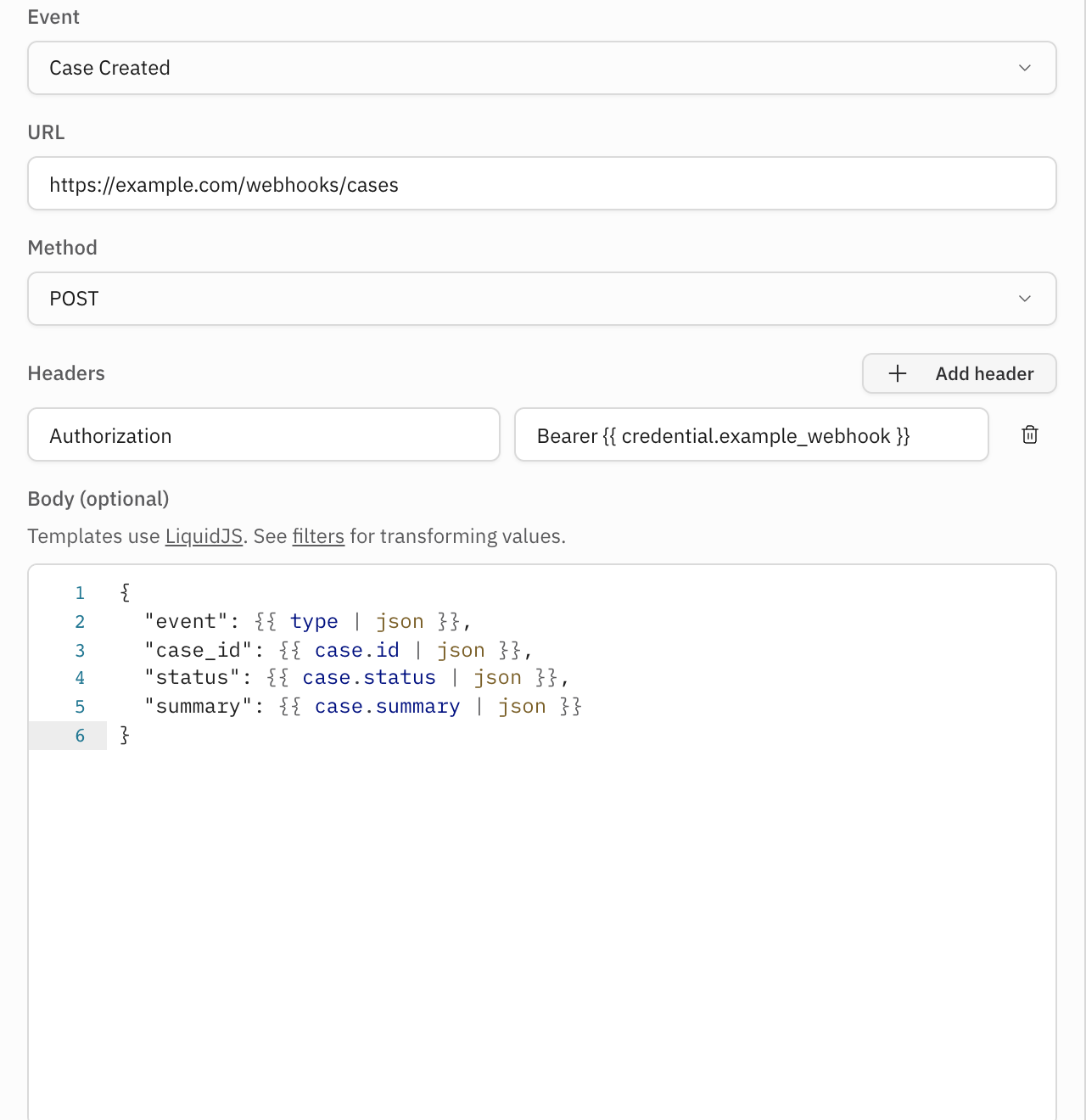
Choose "Case Created" from "Event". Enter the public HTTPS endpoint in "URL", then choose "POST" from "Method".
Under "Headers", select "Add header". Enter Authorization for the name and
this Liquid reference for the value:
Bearer {{ credential.<credential-name> }}
Replace <credential-name> with the credential you created.
Enter this JSON body template in "Body". The | json filter keeps rendered
values valid when a case field contains quotes, line breaks, or other JSON
characters:
{
  "text": {{ case.name | json }},
  "case_id": {{ case.id | json }},
  "status": {{ case.status | json }},
  "summary": {{ case.summary | json }}
}
The form shows the selected event, request method, credential reference, and case fields.
3. Preview the rendered request
Select "Preview". Perpetual renders the request for a CaseCreated event. The
preview does not send the request.
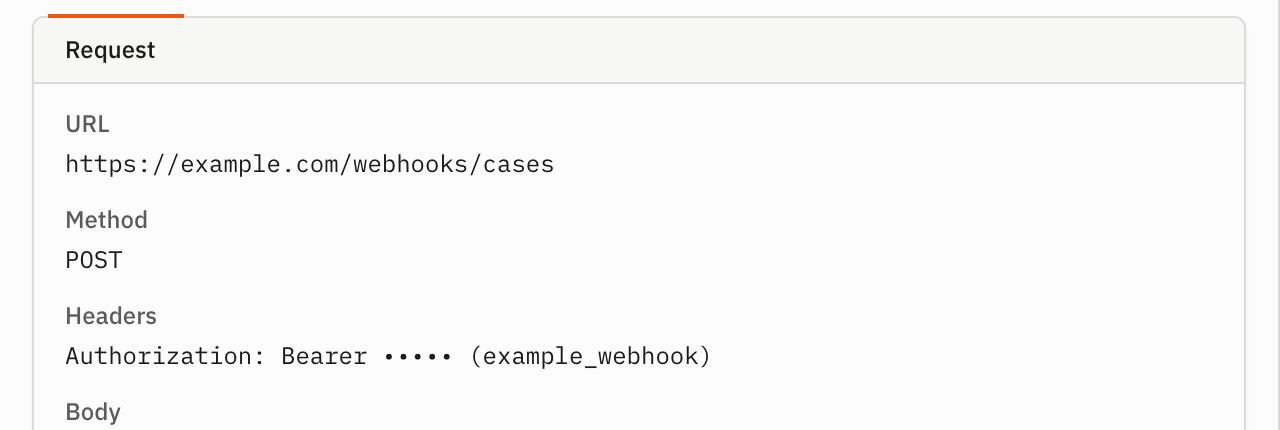
Confirm that "Request" shows the configured HTTPS URL and POST. If you
configured a credential header, the preview masks its value. The rendered body
is valid JSON.
Preview checks rendering only. Use a public HTTPS destination for a real request, then use the "Deliveries" tab to verify delivery.
4. Commit the webhook
Select "Commit". In "Commit Changeset", review the webhook change in the changeset, then select "Commit".
The webhook page shows the webhook name and no pending changes. When the
CaseCreated event fires, Perpetual renders the configured URL, headers, and
body with the event payload and sends the POST request.
Verify the result
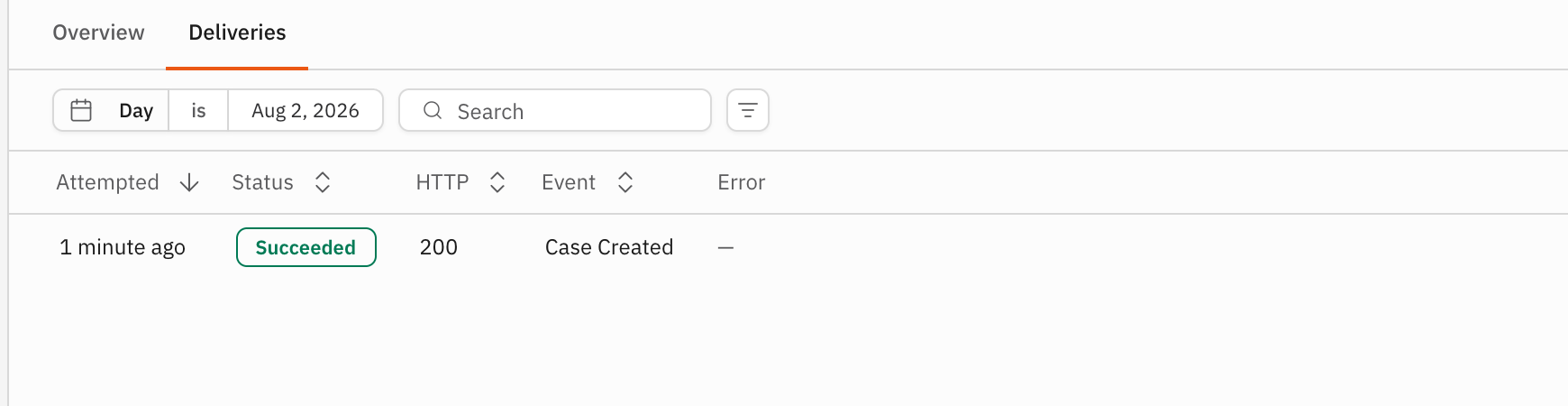
Open the webhook's "Deliveries" tab. A delivered CaseCreated event appears
there with the request status and response. If no delivery appears, confirm
that a new case event reached the same Space and that the destination accepted
the request.