Map a source to ECS
Map fields from a parser into the ECS schema with a mapper. Preserve the original event and stable identifier while you add the ECS fields that exist in your source. After deployment, the mapper's ECS view contains the normalized fields and preserved event structure.
Before you start
You need:
- a parser with representative events and verified output
- permission to create or edit a mapper in the parser's integration
- the ECS field reference
Map only fields that your parser produces. If the source has no stable event identifier, resolve one during parsing before you create the mapper.
1. Inspect the parser output
Select "Content", then "Integrations". Open the integration that contains the parser, select the "Parsers" tab, and open the parser. The "Overview" tab shows the parser query, target table, and schema fields.
Identify the fields that correspond to the ECS targets available in your source. Common targets include:
| ECS target | Mapping purpose |
|---|---|
timestamp | Event time |
message | Human-readable event message |
event.original | Original event text or payload |
event.action | Source action, when present |
event.id | Stable source event identifier |
user.id | Source user identifier, when present |
source.ip | Source IP address, when present |
Preserve the original event and timestamp. Omit a target when the source does not provide a corresponding field.
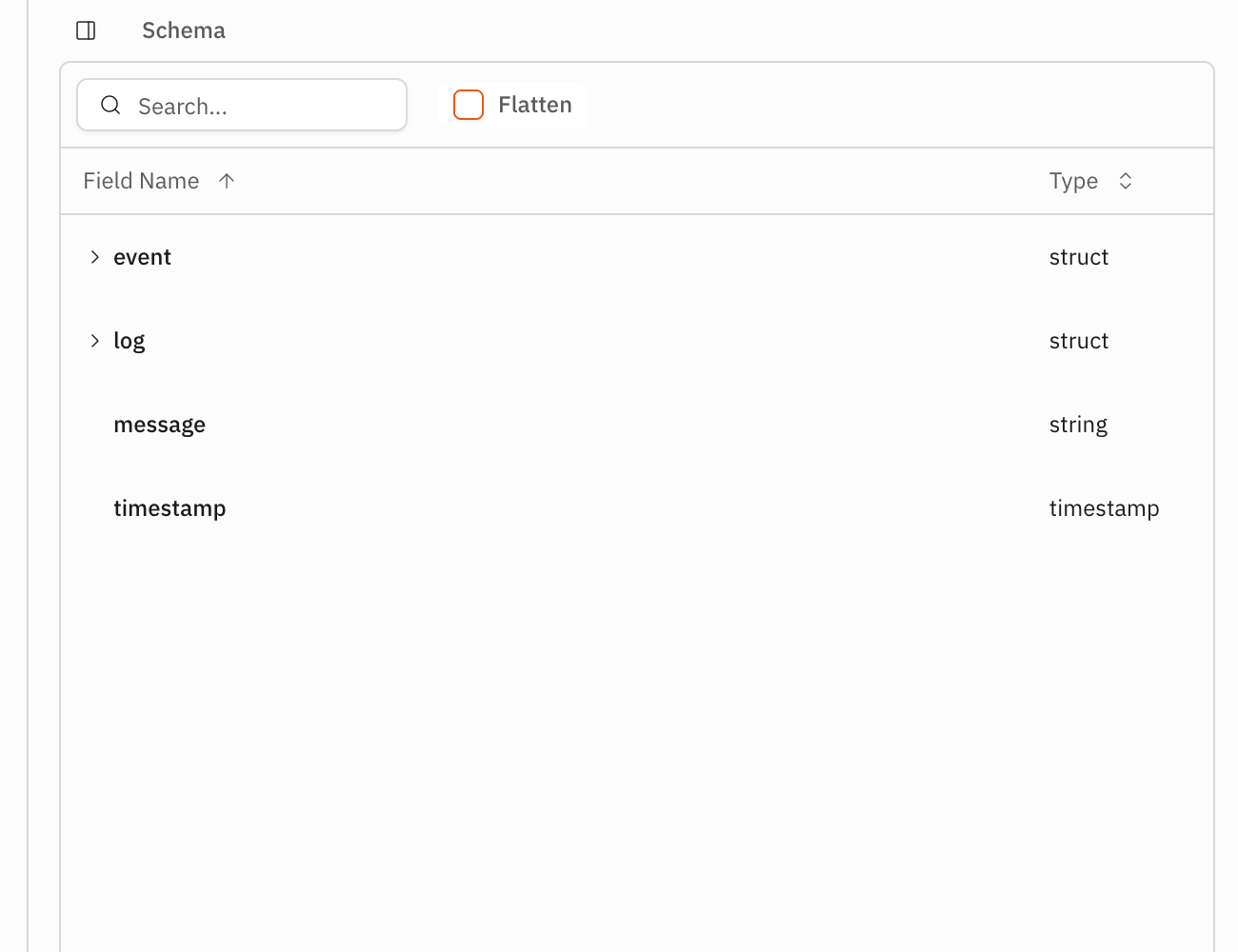
The parser's Schema panel identifies the typed fields that the mapper can assign before you open the mapper.
2. Map the fields to ECS
Return to the integration and select the "Mappers" tab. Select "New Mapper", then enter a reader-chosen name in "Mapper name".
Under "Source Tables", choose the parser table. Keep "Deploy" selected. The query starts with the selected parser table.
Use the ECS Schema panel to choose valid target fields and their types. Add
explicit casts when the parser field type does not match the ECS type. Prefer
SET and DROP so that fields you do not change, including the top-level
event structure and event.id, remain in the result.
For example, replace each placeholder below with a field that exists in your parser output, and omit assignments for fields that are not present:
FROM events.<parser-table>
| SET event.original = <original-event-field> AS string
| SET event.action = <action-field> AS string
| SET user.id = <user-id-field> AS string
| SET source.ip = <source-ip-field> AS string
| SET event.id = <stable-event-id-field> AS string
| DROP <temporary-field>
Do not use the example placeholders as literal field names. The "Schema" panel
shows whether each assignment matches the ECS field type. Add the DROP line
when the query creates an intermediate field that must not remain in the mapper
output.
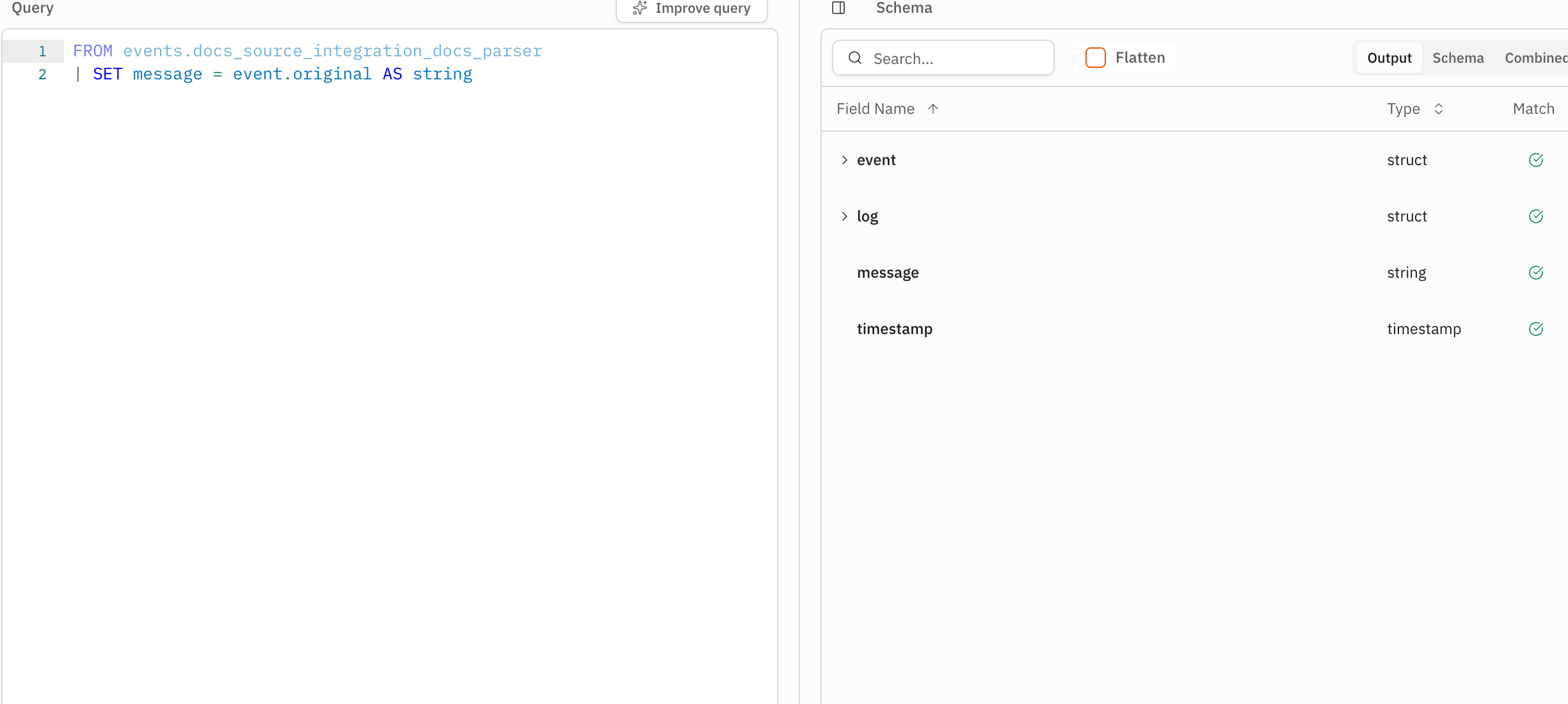
The mapper query assigns only source fields that have valid ECS targets.
3. Preview the normalized rows
Select the "Test" tab. Select "Run" for the first execution. After the first result returns, select "Re-run" when you change the mapping.
When the parser has matching events, the preview shows the normalized fields,
the preserved event structure, and the source's stable event.id. Check that
every field has the expected ECS type and that fields you did not map remain
available. If the preview is empty, confirm the parser table and time range,
then select "Re-run".
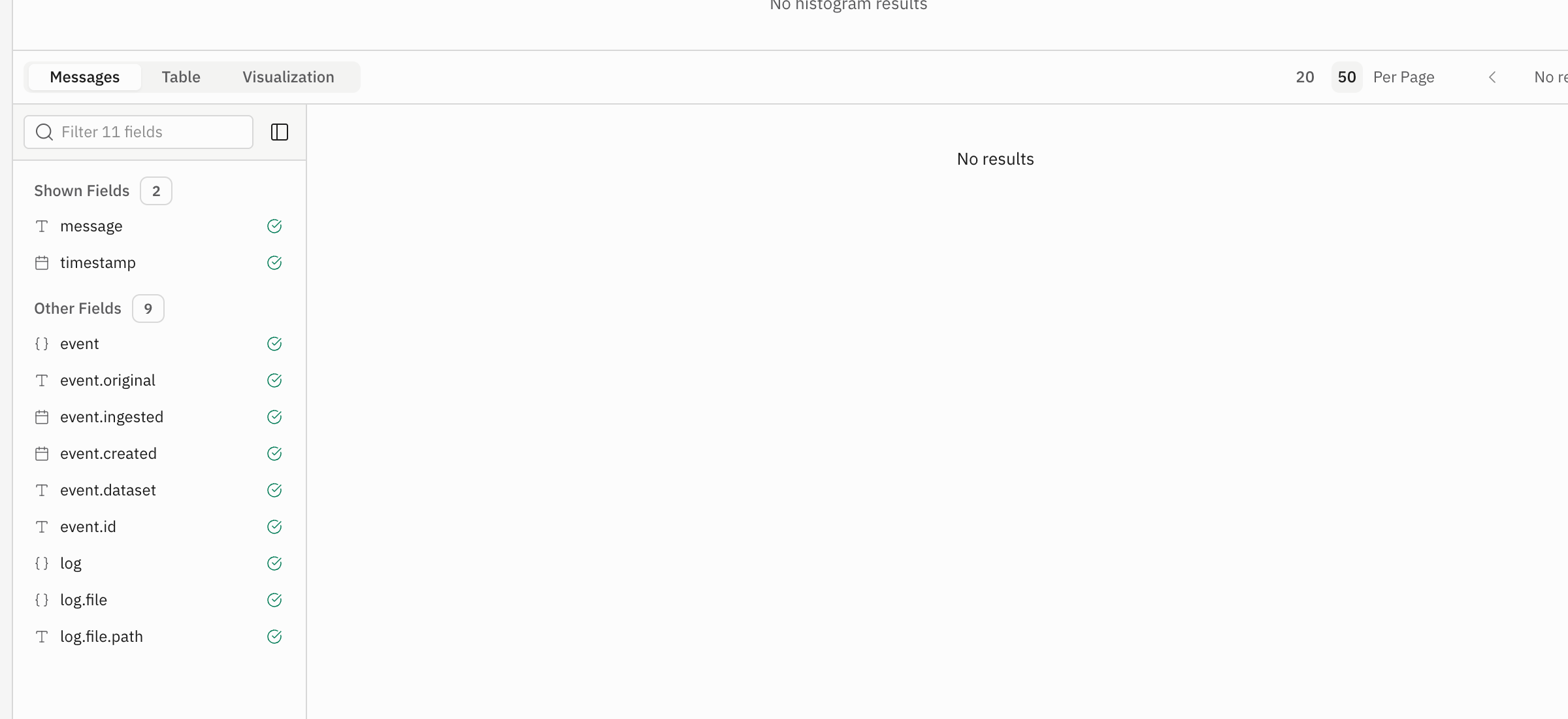
The Test tab exposes the selected and other fields even when the current time range has no matching rows. With matching parser data, the result table shows the normalized fields and the preserved event structure.
4. Commit the mapper
Select "Commit". In "Commit Changeset", review the mapper change and select "Commit".
The mapper begins its asynchronous deployment. Perpetual updates the integration's ECS view when the mapper is deployed.
Verify the result
Open the mapper and confirm:
- the "Test" result contains the mapped fields and preserved
eventstructure - the "Status" changes to "Deployed"
- the "View" field links to the integration's ECS view
Select the ECS view from "View" and confirm that it contains the mapper branch.