Collect data from S3
Configure an AWS S3 Object Store connector to collect objects from an S3 bucket. You provide the bucket details and a delivery role that lets the Perpetual data plane read the bucket. After deployment, the connector shows "Deployed". A query can return collected rows when matching objects exist.
Before you start
You need:
- permission to create connectors in the Space
- an S3 bucket that contains the objects to collect
- AWS access to create or select the IAM delivery role used by the connector
The bucket policy and delivery role must allow the data plane to read the objects that the connector will collect.
1. Create the connector
-
In the left navigation, select "Datasets".
-
Select "New Dataset", then select "Connector".
-
In "Connector name", enter a name that identifies this source.
-
In "Connector kind", select "AWS S3 Object Store".
The form displays the "Bucket Details" and "Grant Bucket Access" sections.
-
In "Bucket name", enter the S3 bucket name.
-
In "Prefix (optional)", enter the object-key prefix when the objects are stored under a folder. Leave it empty to collect objects from the bucket root.
-
In "Initial Lookback (Days)", enter how many days of existing objects the connector retrieves during its initial deployment.
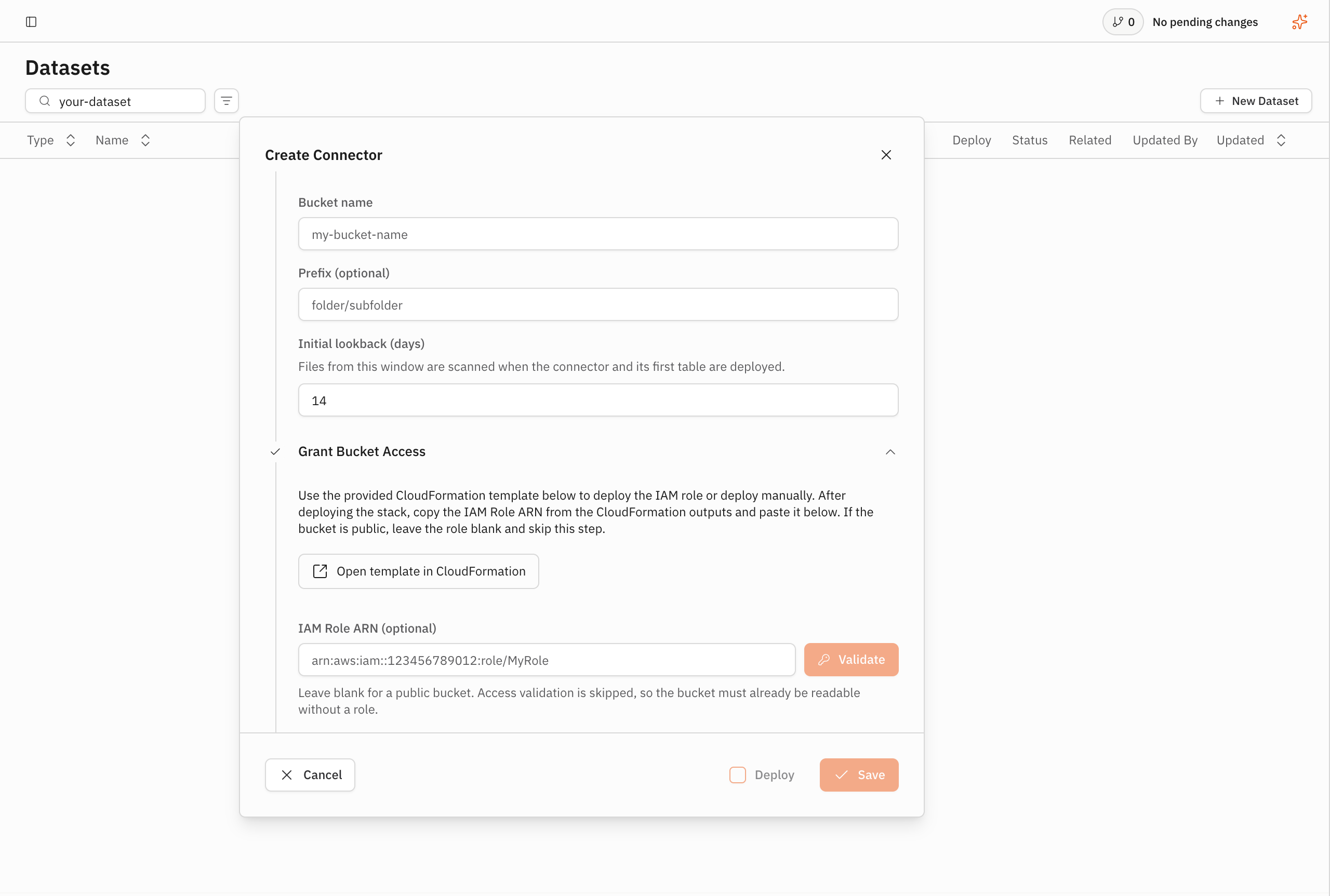
The connector name, connector kind, bucket details, and initial lookback are now set.
2. Grant bucket access
- Select "Grant Bucket Access".
- Select "Open template in CloudFormation" to deploy the provided IAM role, or create an equivalent role manually.
- If you use the template, wait for the CloudFormation stack to finish.
- In the stack outputs, copy the value named
DeliveryRoleArn. Do not copy the CloudFormation stack ARN. - Paste the value into "IAM Role ARN".
- Select "Validate".
Review the "Review" section before saving. It shows the expected bucket and prefix. When you use a delivery role, it also shows the role ARN after validation.
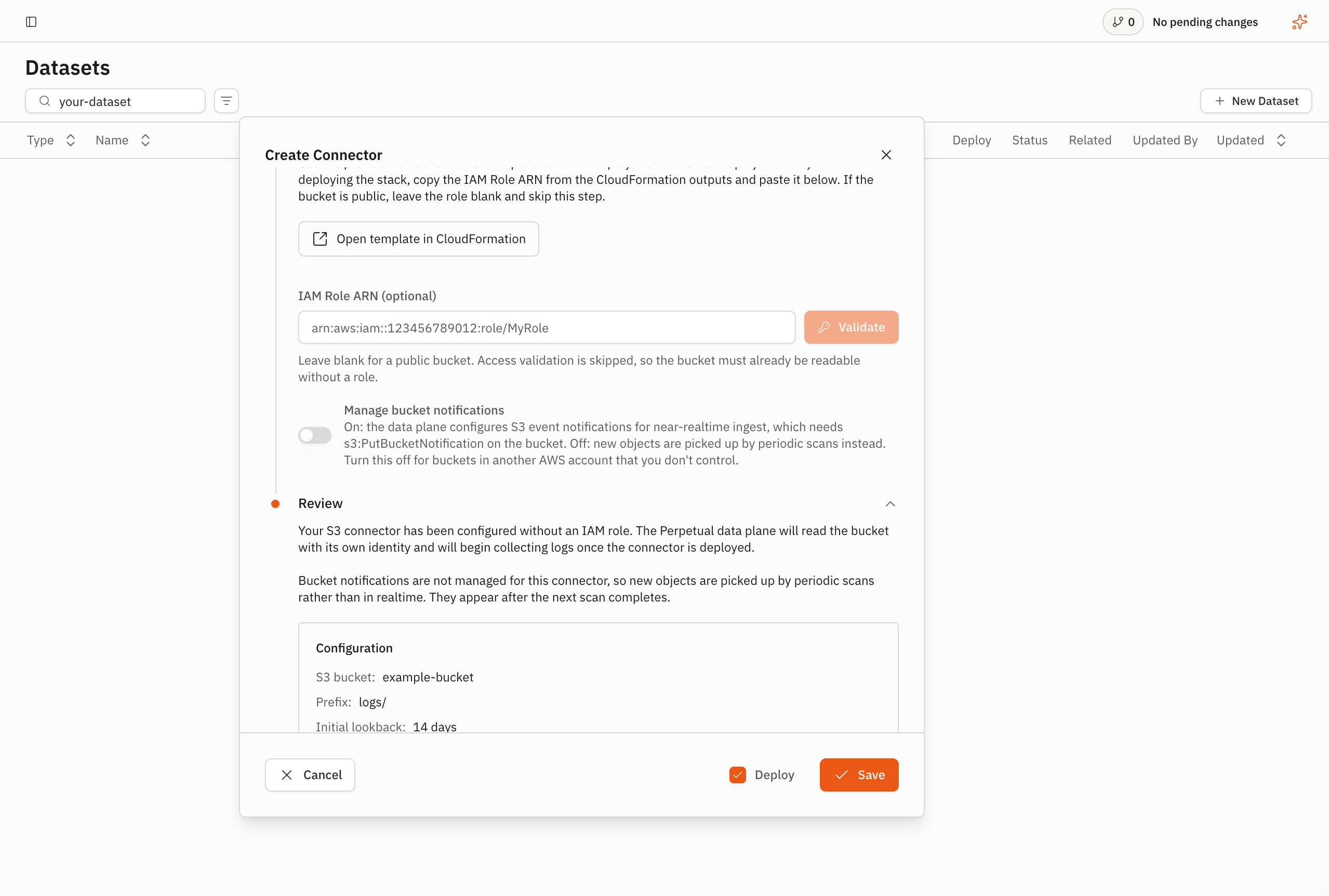
The connector configuration is ready to save.
3. Save and commit the connector
Select "Save". Review the saved connector configuration, then select "Commit". In the "Commit Changeset" dialog, review the change and select "Commit".
Keep "Deploy" selected. After you commit the changeset, the connector begins its asynchronous deployment. Wait for its status to change to "Deployed".
Verify the result
On the connector page, confirm that the saved configuration contains the expected bucket, optional prefix, delivery role, and initial lookback. Confirm that the status is "Deployed".
Select "Query" in the same Space and enter:
FROM connectors.<connector-name>
Replace <connector-name> with the value from "Connector name", then select
"Run". The result shows rows from objects that the connector collected when
data is available.