Parse custom data
Create a parser that turns raw connector events into typed fields in a derived table. Use Simba to draft the query, or inspect the raw events and write the query yourself. After deployment, the parser shows "Deployed" and its "Target Table" contains the typed output fields.
Before you start
You need:
- a connector with representative events
- content-management access to the connector's integration
- permission to create and commit a parser
Choose a connector that provides the fields that downstream users need. Include
timestamp, message, and a stable event.id when the source provides them.
1. Create the parser
Select "Content", then "Integrations". Open the integration that owns the connector, select the "Parsers" tab, then select "New Parser".
Enter a reader-chosen name in "Parser name". Under "Connectors", choose the connector to parse. Keep "Deploy" selected.
The query editor opens with the selected connector in the first FROM line.
The parser overview shows the target table that Perpetual will create. Use the displayed "Target Table" value as the parser output name.
2a. Write the parsing query with Simba
On the parser's "Overview" tab, select "Write query". On a parser that already has a query, this Simba action is labelled "Improve query". Describe the event format and the fields that the parser must extract. Review the generated query in the editor, then confirm that its output fields have the names and concrete types required by downstream mappings.
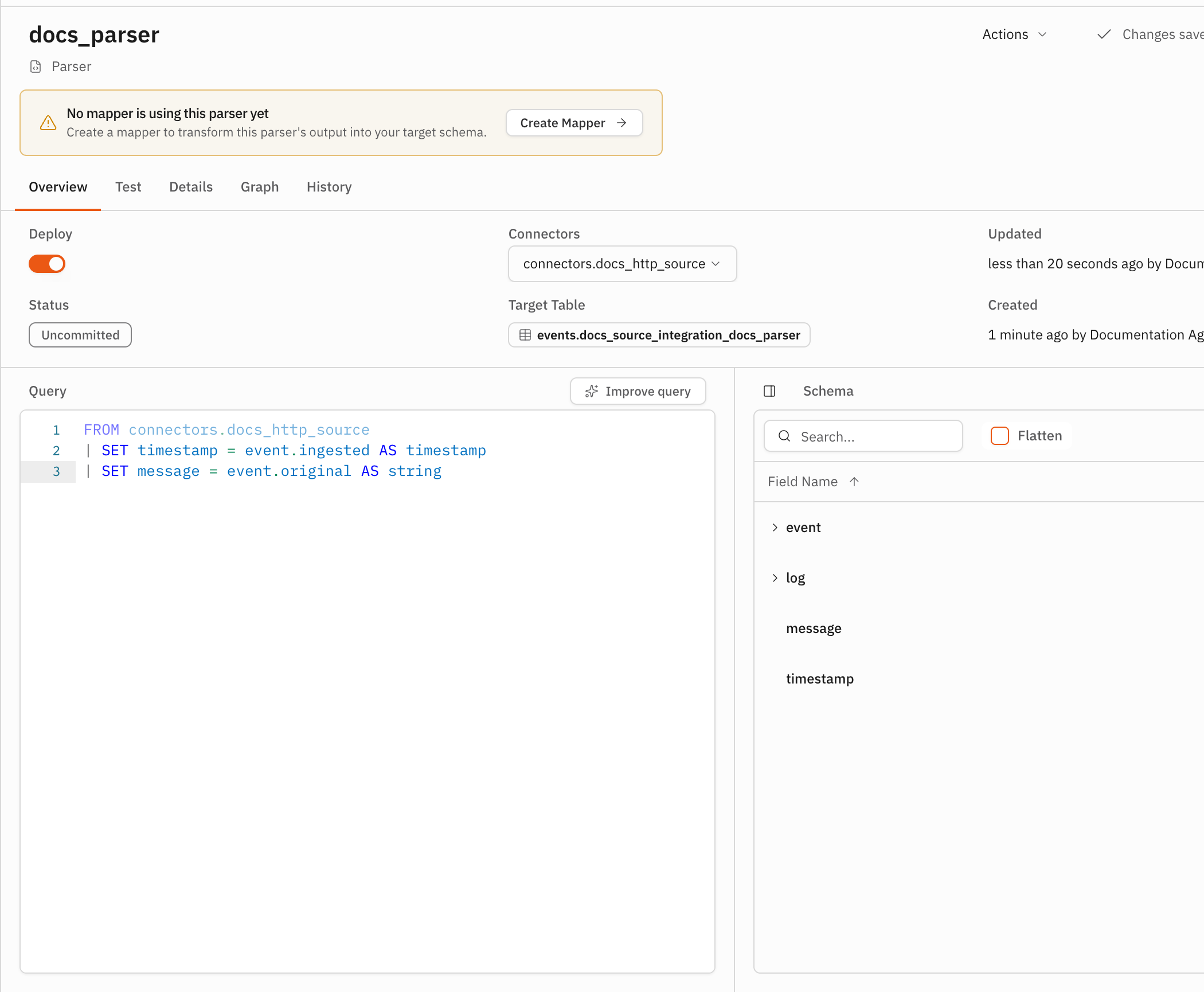
The parser query is ready for testing in the Test tab.
2b. Write the parsing query yourself
Select the "Test" tab. Leave the prefilled FROM query unchanged, then select
"Run". The result area shows the raw connector events. Use these rows to
identify the fields, types, and nesting that the parser must extract.
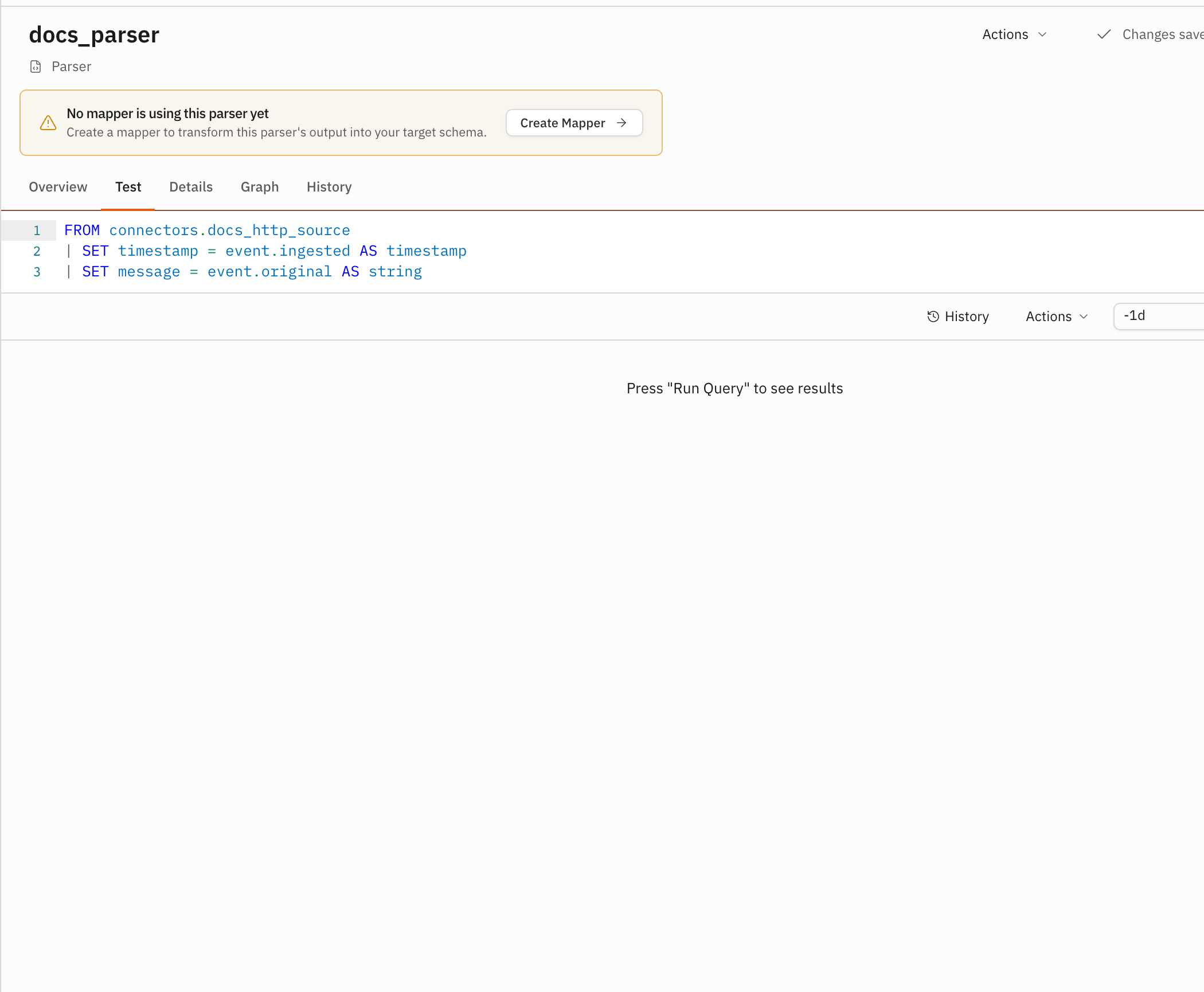
Edit the query in the "Test" tab and select "Run" after each change. Add one operation at a time and inspect the returned rows until the output structure matches the fields that downstream users need. If the Test tab provides a sampling limit, use it only for that test execution and remove it before you commit the parser.
For JSON payloads, use parse_json() to read nested
values. For text with a stable layout, use the
PARSE operator with anchor text and wildcard fields.
When a JSON payload contains an array of events, use
EXPLODE to emit one row for each element. Drop
intermediate values after you extract the output fields.
For example, this pattern parses JSON and keeps only typed output fields:
FROM connectors.<connector-name>
| SET detail = parse_json(event.original).detail
| SET message = detail.displayMessage AS string
| SET timestamp = ts(detail.published AS string)
| SET event.id = detail.uuid AS string
| DROP detail
This pattern extracts fields from a stable text layout:
FROM connectors.<connector-name>
| PARSE event.original "User * logged in from *" AS username, ip_address
For an array in a JSON payload, use an intermediate value and drop it after expansion and extraction:
FROM connectors.<connector-name>
| SET payload = parse_json(event.original)
| EXPLODE item = payload.events AS array(variant)
| SET message = item.message AS string
| SET timestamp = item.timestamp AS timestamp
| DROP payload, item
Parser output must use concrete types. Do not leave variant fields in the
committed output. The committed parser query must not use AGG, SORT,
LIMIT, WITHIN, UNION, JOIN, WINDOW, or DEF. A temporary sampling
limit, when the Test tab supports one, must not remain in the committed query.
The Test result shows the fields that the parser will write to its target table.
3. Commit the parser
Select "Commit". Review the parser change in "Commit Changeset", then select "Commit".
The parser begins its asynchronous deployment process.
Verify the result
Open the parser in its integration. Confirm that the displayed "Target Table" matches the output you tested. Wait for the parser status to change to "Deployed".